
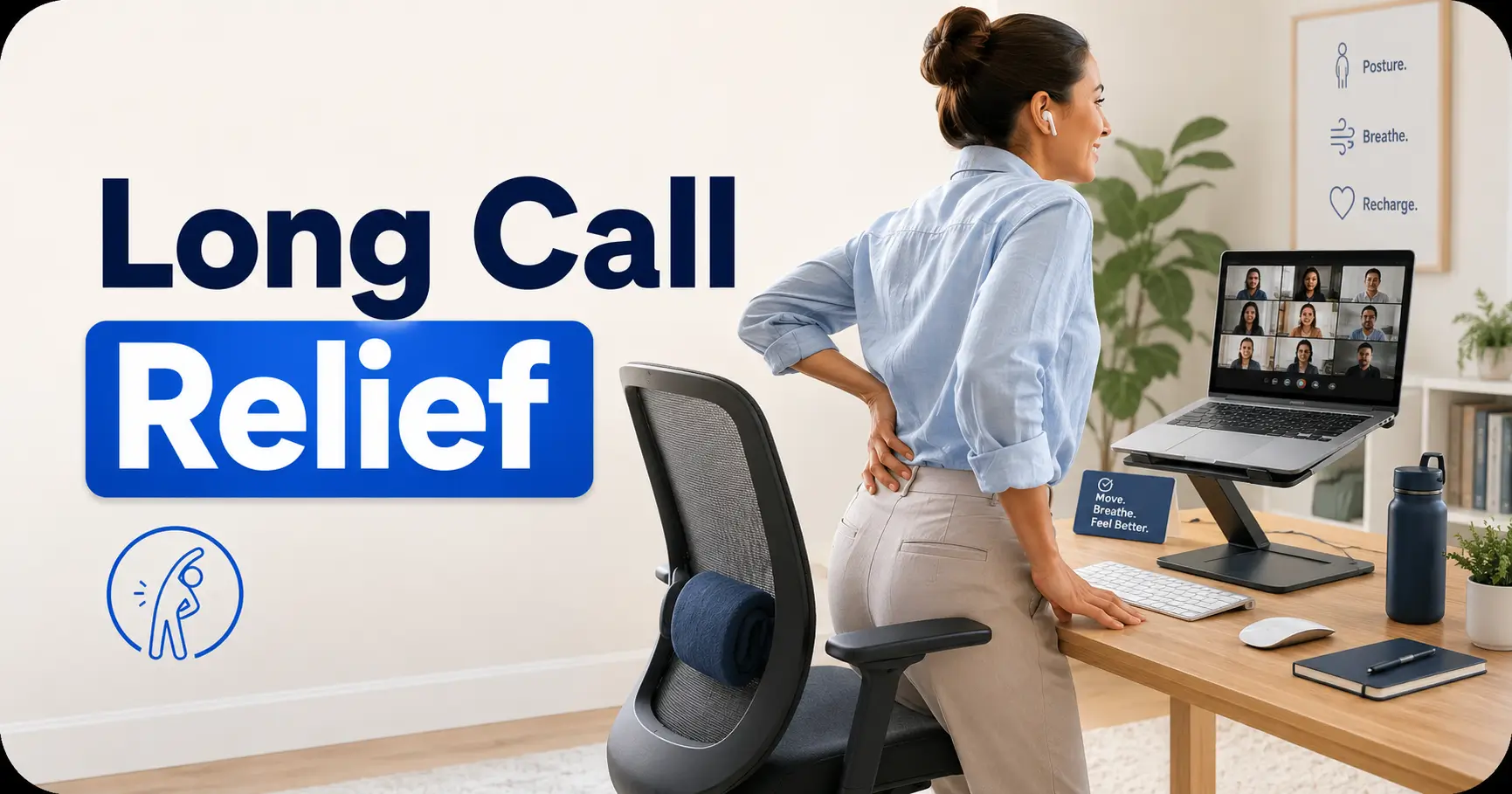
Remote-work pain survival guide
How to Handle Long Conference Calls With Back or Hip Pain
A long conference call can turn an ordinary ache into a small private weather system. Your lower back tightens, one hip starts bargaining for mercy, and the person presenting slide 47 appears blissfully unaware that your chair has become a medieval device.
The answer is rarely one perfect posture. A more useful strategy is to prepare several tolerable positions, change between them before discomfort becomes consuming, and make the meeting itself create natural movement opportunities.
This guide shows you how to build that system without buying a showroom full of ergonomic equipment. You will also learn which symptoms deserve medical attention rather than another round of cushion rearrangement.
Prepare three positions
Supported sitting, supported standing, and a brief movement option.
Move before the flare
Use agenda transitions rather than waiting for severe discomfort.
Know the red flags
Separate position-sensitive soreness from symptoms that need prompt care.
The goal is not to sit beautifully. It is to finish the call with enough body left for the rest of your day. 🎧
Snapshot
This article is for remote and hybrid workers whose back or hip discomfort worsens during long meetings. You will learn how to prepare your chair, desk, camera, agenda, and movement breaks, compare low-cost support options, and decide when professional evaluation or a workplace accommodation may be appropriate.
On This Page
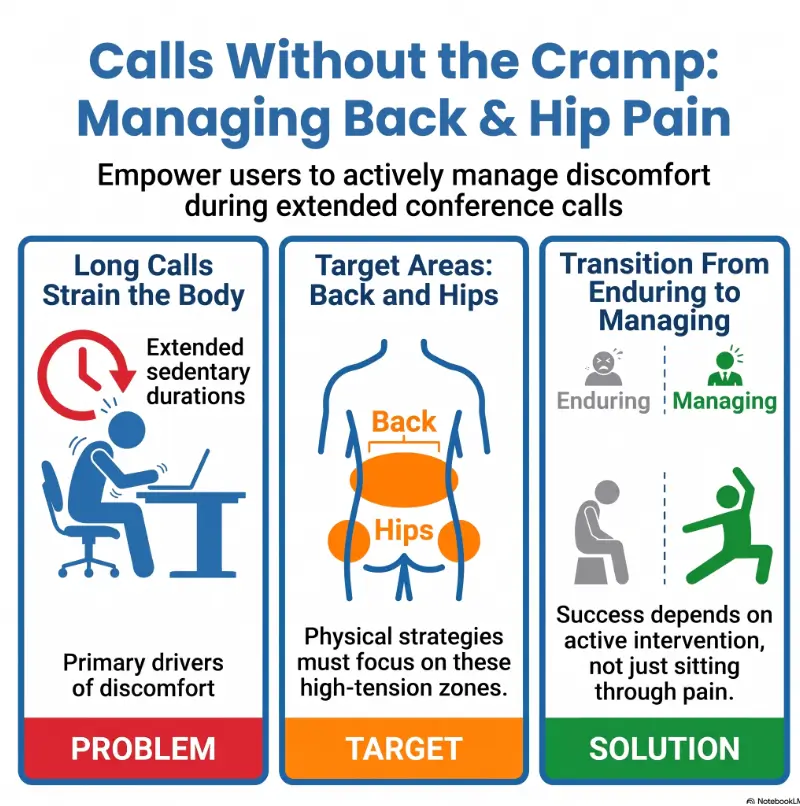
Before You Adjust Another Cushion
Back and hip pain have many possible causes. Some respond well to changing positions and improving workstation support. Others need assessment, especially when symptoms are new, worsening, linked to an injury, or accompanied by neurological changes.
Safety and scope
This article offers general ergonomic and educational guidance. It cannot diagnose the source of pain or tell you whether a particular stretch, standing schedule, cushion, medication, or exercise is safe for you. Confirm changes with a qualified healthcare professional if you are recovering from surgery, pregnant, recently injured, medically restricted, or managing a neurological, joint, spinal, vascular, or inflammatory condition.
Discomfort from staying still has a recognizable pattern
Position-sensitive discomfort often builds gradually. You may feel reasonably comfortable at the beginning of a call, notice stiffness or pressure after a while, and obtain at least partial relief when you stand, walk, recline slightly, or change which surfaces are supporting you.
That pattern does not prove the problem is harmless. It simply gives you useful information. Record when symptoms begin, which positions aggravate them, and what provides relief. A simple pain flare trigger log can turn a vague complaint into something you and a clinician can examine more clearly.
Pain that keeps progressing deserves a different response
Do not treat every symptom as an office-chair problem. Arrange appropriate medical advice when pain repeatedly interferes with work, walking, sleep, dressing, driving, or other daily activities. Seek help sooner when symptoms are spreading, becoming more intense, or no longer responding to position changes that previously helped.
Key takeaway
Ergonomics is most useful when discomfort is influenced by position. It should not be used to explain away new weakness, spreading numbness, severe injury-related pain, or bladder and bowel changes.
The First 10 Minutes Quietly Shape the Next Two Hours
The most effective time to manage a painful meeting is before it begins. Once the call is underway, your attention becomes divided between the conversation, your symptoms, the camera, and the tiny mystery of why someone is still typing while unmuted.
Start with supported sitting, not ceremonial good posture
Place your feet flat on the floor or on a stable footrest. Adjust the chair so your thighs are supported without strong pressure behind the knees. Your hips may feel better with the seat level, slightly higher than the knees, or modestly reclined, but individual tolerance varies.
Support the natural curve of the lower back with the chair’s built-in support or a small folded towel. Avoid forcing a large cushion into the middle of your back. Support that is too thick, too high, or too low can simply move the pressure elsewhere.
Anyone returning to desk work after a procedure should follow the restrictions provided by the surgical or rehabilitation team. The principles in this guide can complement, but not replace, an individualized remote-work-after-surgery plan.
Raise the screen before your spine starts chasing it
A low laptop encourages the head and upper body to drift forward. Over a long call, that forward drift can spread tension through the neck, shoulders, and lower back. Raise the screen enough that you can see it without steadily folding toward it, then use a separate keyboard and pointing device when possible.
OSHA’s computer workstation guidance recommends a supported back and feet, relaxed shoulders, and a monitor positioned around eye level rather than far below it. :contentReference[oaicite:0]{index=0}
For a deeper setup guide, see how to reduce neck pain from laptop work. Fixing the screen height may also make your on-camera posture look more natural, which is a pleasant side effect rather than the main event.
Prepare one seat, one standing station, and one escape route
- Seated position: Supported feet, supported back, screen in front, frequently used controls within easy reach.
- Standing position: Screen and keyboard raised without requiring you to bend over a laptop on a low table.
- Movement route: A clear path where you can take several steps during audio-only moments without tripping over cords, pets, bags, or furniture.
You are not committing to any one position for the full meeting. You are placing three tools within reach so you do not have to improvise after the pain has already taken command.
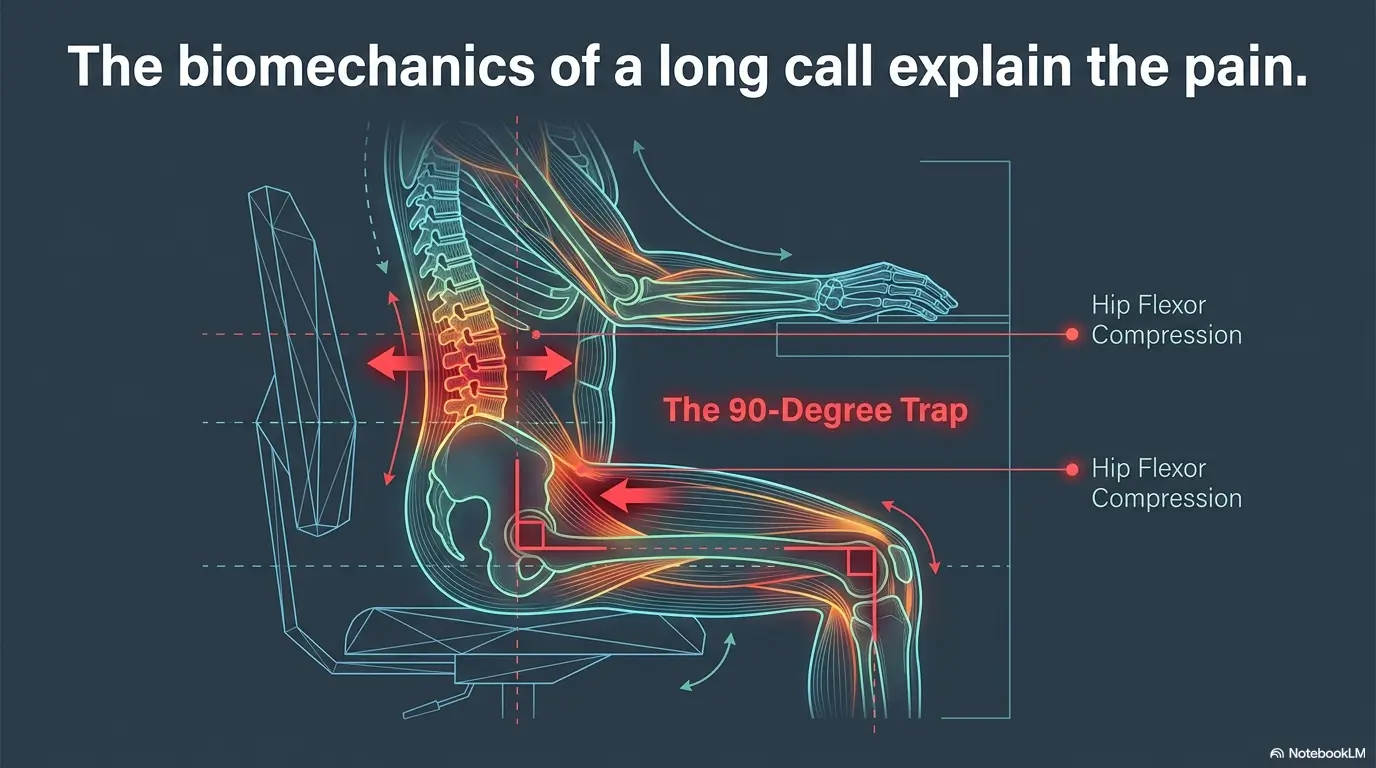
The 20-Minute Reset That Stops Pain From Snowballing
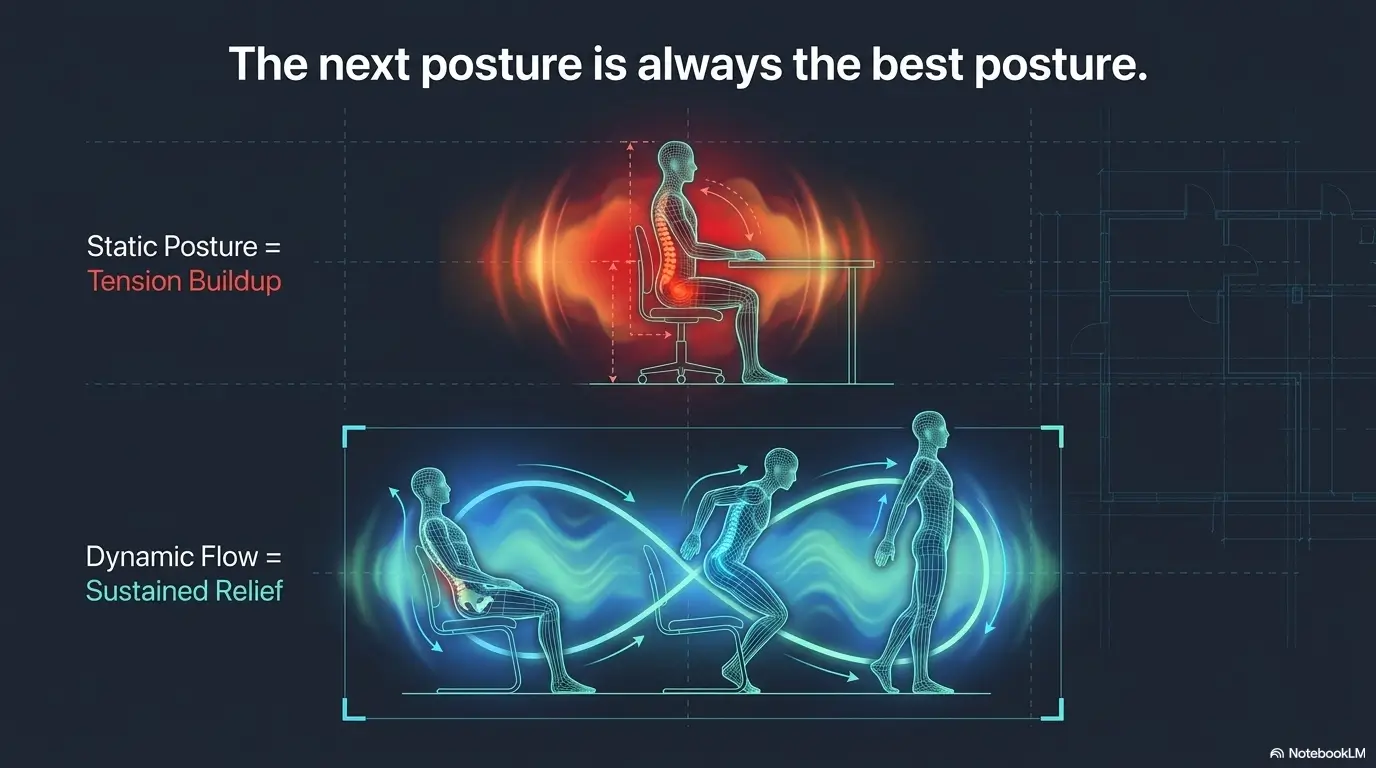
There is no universal timer that fits every body or diagnosis. Still, many people benefit from testing a position change roughly every 20 to 30 minutes rather than waiting until pain becomes severe. Treat that interval as a starting experiment, not a medical prescription.
Change position before you feel desperate
Once pain is intense, even a sensible change may take longer to help. Earlier resets are smaller and less disruptive. You might move from upright sitting to a slightly reclined position, stand with one foot on a low support, or take a brief walk while muted.
Movement does not need to look athletic. Thirty seconds of standing, shifting weight, straightening the knees, or walking to the doorway may be enough to interrupt a static position.
Attach movement to something the meeting already does
Timers work, but they can become another notification begging for attention. Agenda-based cues are quieter:
- Stand when the meeting moves to the next agenda item.
- Change position when a new presenter begins.
- Walk during a five-minute status update that does not require note-taking.
- Reset your feet and back support whenever someone shares a screen.
- Use scheduled breaks to leave the workstation rather than scrolling at the workstation.
Short Story: The Call That Did Not Ruin the Afternoon
Leah’s weekly planning meeting lasted ninety minutes. She usually stayed seated because she worried that standing on camera would look distracted. By the final half hour, the outside of her hip burned, and the rest of the day became a sequence of compensations.
For the next meeting, she raised her camera, placed a folded towel behind her lower back, and cleared enough space to stand without leaving the frame.
She stood when the team moved from reporting to discussion, sat again during budgeting, and walked for one minute while another department presented. None of the changes was dramatic. Most colleagues probably did not notice.
Her pain did not vanish, but it began later and stayed manageable. The useful lesson was not that standing had cured her. It was that she stopped asking one position to carry the entire meeting.
The PACE call cycle
1. Prepare
Set up seated, standing, and movement options.
2. Anchor
Begin with stable feet, back support, and an accessible keyboard.
3. Change
Switch positions at natural meeting transitions.
4. Evaluate
Note when pain began and which change helped.
Sit, Stand, or Walk? Match the Position to the Pain Pattern
A standing desk is not a moral upgrade from a chair. Standing is simply another position, and prolonged static standing can also contribute to discomfort. NIOSH has reported that dynamic movement appears more useful than replacing prolonged sitting with prolonged standing. :contentReference[oaicite:1]{index=1}
When sitting is tolerable but stiffness builds
Use supported sitting for tasks that require concentration, typing, or detailed note-taking. Change the backrest angle occasionally, keep both feet supported, and avoid allowing the pelvis to slide steadily toward the front edge of the chair.
People with hip discomfort may need to experiment with seat depth and firmness. A deep seat can press behind the knees or encourage slumping. A very soft seat can let one hip sink lower than the other.
When standing offers relief
Standing may help when sitting produces increasing pressure or front-of-hip tightness. Keep the work surface high enough that you are not bending toward the keyboard. Supportive footwear and a stable surface matter more than heroic posture.
Try placing one foot on a low, stable support and changing feet periodically. Stop or modify the position if standing increases back, hip, leg, or foot symptoms.
When a walking call helps, and when it becomes a concentration trap
Walking can work well for listening, brainstorming, or informal one-to-one calls. It is less useful when you need to inspect documents, type accurately, manage several windows, or participate in a visually demanding presentation.
Do not assume more walking is automatically better. If walking aggravates hip pain, leg symptoms, balance problems, or fatigue, use another supported position and discuss the pattern with a clinician.
| Position | Often useful for | Common mistake | Safer adjustment |
|---|---|---|---|
| Supported sitting | Typing, note-taking, detailed decisions | Holding one rigid posture | Change backrest angle and foot position periodically |
| Supported standing | Listening, presenting, short discussions | Standing for the whole meeting | Alternate with sitting before fatigue builds |
| Brief walking | Audio-only updates and informal calls | Walking while reading or typing | Walk only during low-visual-demand segments |
| Reclined sitting | Short relief periods for some pain patterns | Reaching forward from the reclined position | Bring keyboard, mouse, and screen closer |
Key takeaway
The best position is usually the next tolerable position, not a permanent pose. Alternate before any one posture starts collecting too much pressure or fatigue.
Show me the nerdy details
A posture can look neutral yet still become uncomfortable when it is held for too long. Muscles continue performing low-level work, pressure remains concentrated on the same tissues, and attention narrows as discomfort increases.
This is why ergonomic advice works best as a system rather than a photograph. Support reduces unnecessary strain, while movement changes which tissues carry the load.
A useful experiment changes one variable at a time. Adjust seat height for one call, support placement for another, and position-change timing for a third. Otherwise, you may improve five things at once and never learn which one mattered.
Your Chair Is Not the Whole Workstation
People often shop for a new chair while leaving the laptop six inches too low, the mouse too far away, and their feet hovering above the floor. That is rather like replacing the mattress while keeping a pebble in the sheet.
Foot support and seat depth change what happens at the hips
If your feet do not rest securely, you may slide forward or tense the legs to stabilize yourself. A purpose-built footrest can help, but a firm box or low platform may be enough for testing. It must be stable, wide enough for both feet, and positioned where it cannot slip.
Check the seat pan as well. You should be able to sit back against the support without the front edge pressing strongly into the backs of your knees. For readers recovering from hip surgery, the appropriate chair height may depend on surgical precautions and mobility needs. Review this office chair height guide after hip surgery alongside your clinical instructions.
Armrests, keyboard, and mouse can quietly pull you sideways
Armrests that are too high may lift the shoulders. Armrests that are too low may provide no support at all. Adjust them so the arms can rest without shrugging or leaning heavily to one side.
Keep the keyboard and mouse close enough that your elbows remain near your body. A pointing device positioned far to the side can encourage rotation through the torso, especially during a long screen-sharing session. The principles in this keyboard and mouse placement guide also apply to many workers managing back or hip discomfort.
A headset prevents the shoulder-clamping phone posture
Do not hold a phone between your shoulder and ear while typing. Use a headset, earbuds, or speaker audio that allows your head to remain centered. Check that you can hear without leaning toward the screen.
Place the camera near the screen you actually watch. When the camera is on one device and the meeting is on another, you may spend an hour rotated toward one side.
Five-minute workstation check
- Can both feet rest on a stable surface?
- Can you sit against the back support without pressure behind the knees?
- Can you reach the keyboard and mouse without leaning forward?
- Can you see the screen without lowering or craning your head?
- Can you stand or step away without moving cables or furniture?
Camera-On Meetings Without the Constant Fidgeting Problem
Many people remain painfully still because they believe movement will look unprofessional. In reality, a carefully framed camera and a few predictable transitions can make position changes nearly invisible.
Frame the camera for movement, not surveillance
Place the camera far enough away that small shifts do not push you out of frame. A chest-up view often gives more freedom than a tightly cropped face-only view. Keep the background simple so standing or adjusting your chair does not create visual chaos.
Test your standing position before the meeting. Raising the desk halfway through a call while the camera points at the ceiling creates a memorable moment, just not the useful kind.
Use quiet transitions instead of continuous motion
Small changes are usually enough. Move when another person begins presenting, when the screen share starts, or when the meeting changes topics. Mute briefly if the chair or desk is noisy.
During camera-on segments, shift your feet, change the backrest angle, or alternate which foot is slightly forward. Save larger movements for screen shares, scheduled breaks, or audio-only portions.
A ten-second disclosure can remove ninety minutes of tension
You do not need to share a diagnosis. A simple sentence may be enough: “I may alternate between sitting and standing during longer meetings for comfort, but I am fully engaged.”
Managers can normalize this by inviting everyone to take brief movement breaks during long sessions. A clear agenda and planned pause often improve attention as well as physical comfort.
Meeting-agenda pain prevention
Before a recurring call, mark three likely movement windows: after introductions, at the first presenter change, and before the final decision segment.
That turns movement from an awkward interruption into part of the meeting’s architecture.
Seven “Helpful” Fixes That Can Make the Call Worse
Rigid posture and all-meeting standing
- Sitting perfectly upright without moving. A posture can be reasonable and still become uncomfortable when held continuously.
- Standing for the entire meeting. Static standing may exchange one source of discomfort for another.
- Forcing the chest up and shoulders back. Excess muscle tension is not the same as useful support.
Aggressive stretching and uneven sitting
- Stretching hard into sharp or radiating pain. Stop movements that cause alarming, spreading, or clearly worsening symptoms, and seek appropriate advice.
- Crossing the same leg for an hour. Occasional leg crossing may be comfortable, but repeatedly leaning to one side can concentrate pressure.
- Working from a deep sofa or bed without support. These surfaces often place the screen, keyboard, and hips in awkward relationships.
- Buying expensive equipment before measuring anything. A premium chair cannot fix a keyboard that remains two feet away.
The larger mistake is waiting until pain becomes severe before responding. Early position changes are easier, quieter, and less likely to derail the rest of your workday.
Key takeaway
Do not confuse stillness with professionalism or strain with good posture. A quiet, planned position change is usually less disruptive than spending the final hour visibly fighting pain.
Support Tools and Costs: What Is Worth Paying For?
You can improve many conference-call setups with objects already at home. Paid equipment becomes more useful when it solves a measured problem, fits your body, and can be returned if it does not help.
Good, better, and best are about adjustability, not prestige
| Setup tier | What it may include | Best for | What to verify before paying |
|---|---|---|---|
| Good: low-cost test | Folded towel, stable foot platform, laptop riser made from firm books, existing headset | Occasional long calls or testing which adjustment helps | Stability, safe cable placement, correct screen and keyboard relationship |
| Better: adjustable basics | Separate keyboard and mouse, basic footrest, adjustable laptop stand, modest lumbar support | Frequent remote work with several meetings each week | Return policy, dimensions, height range, firmness, cleaning instructions |
| Best: adaptable workstation | Supportive adjustable chair, sit-stand surface, monitor arm, suitable headset | Daily remote work or complex ergonomic needs | Professional fit, weight and height limits, warranty, stability, clinician or ergonomic recommendations |
Lumbar cushion, seat wedge, or footrest?
A lumbar cushion supports the lower back. A seat wedge changes the seat angle and may alter hip position. A footrest supports the feet when the chair must be raised to match the desk.
None is automatically the right first purchase. Identify the problem:
- If you cannot reach the backrest comfortably, test lumbar support placement.
- If the chair is too high for your feet, test a foot platform.
- If seat depth or hip angle seems aggravating, discuss seating options with a clinician or qualified ergonomics professional before buying a wedge.
- If you slide forward because the desk is too high, the desk-chair relationship may need correction rather than another cushion.
What to ask before buying ergonomic equipment
- What exact measurement or symptom is this product meant to address?
- Can the height, angle, depth, or firmness be adjusted?
- Will it fit my chair, desk, body dimensions, and medical restrictions?
- Can I return it after a realistic workday test?
- Does the material create heat, pressure, instability, or difficulty standing up?
- Would a workplace ergonomic assessment provide better value than buying several products blindly?
Heat and cold products are another common purchase. Their suitability depends on the condition, timing, skin sensitivity, circulation, sensation, and clinical instructions. Compare the practical differences in this heating pad versus ice wrap guide, and avoid using either in a way that risks skin injury.
When Medical Help Matters More Than Ergonomics
Arrange medical evaluation when pain is persistent, recurrent, worsening, difficult to explain, or increasingly disruptive. A clinician can assess whether the problem is more likely related to the back, hip, surrounding tissues, nerves, another medical condition, or a combination.
Symptoms that deserve prompt medical evaluation
- New or increasing weakness in a leg or foot
- Spreading or persistent numbness
- Increasing difficulty walking or maintaining balance
- Severe pain following a fall, collision, or other significant injury
- Pain accompanied by fever, unexplained illness, or other concerning symptoms
- Pain that repeatedly wakes you, limits basic daily activities, or continues to worsen
- New symptoms following surgery or a procedure
Write down when symptoms started, what they feel like, where they travel, what makes them better or worse, and which activities have become difficult. This guide to describing pain to a doctor can help you prepare a clearer account.
Emergency warning signs should not wait for the next appointment
Seek emergency medical care for new bladder or bowel control problems, difficulty sensing bladder function, numbness around the groin, genitals, buttocks, or inner thighs, or rapidly developing neurological changes. These can be warning signs of a rare but serious spinal emergency. :contentReference[oaicite:2]{index=2}
Do not drive yourself if it is unsafe
Use local emergency services or obtain safe transportation when severe pain, weakness, numbness, medication effects, or difficulty controlling the legs makes driving unsafe.
When a workplace accommodation may be appropriate
If long or back-to-back meetings repeatedly worsen a documented medical condition, consider discussing accommodations with the appropriate workplace contact. Possibilities may include shorter meeting blocks, recovery buffers, camera flexibility, an adjustable workstation, alternative seating, audio-only participation for suitable segments, or permission to change position.
Eligibility and documentation requirements vary. Ask the employer what information is needed and ask the treating professional to describe functional limitations rather than promising a particular workplace outcome. The ADA accommodation letter guide for back pain explains practical documentation issues in more detail.
Key takeaway
Equipment changes may improve tolerance, but they cannot rule out a medical cause. When function is declining or neurological symptoms appear, move from workstation experimentation to professional evaluation.
FAQ: Long Conference Calls With Back or Hip Pain
How often should I change position during a long conference call?
A practical starting experiment is to make a small position change every 20 to 30 minutes. Your appropriate interval may be shorter or longer depending on your symptoms, diagnosis, recovery status, and clinical guidance. Change sooner when pressure or stiffness is clearly building.
Are standing desks always better for back pain?
No. Prolonged standing can also contribute to discomfort and fatigue. A sit-stand workstation is valuable mainly because it provides options. The desk should help you alternate positions rather than trap you in a different static posture.
How can I move without looking distracted on camera?
Use small posture changes during active discussion and larger changes during screen shares or presenter transitions. Position the camera far enough away to permit sitting and standing, mute when moving equipment, and briefly tell colleagues that you may change position for comfort.
Should I buy a lumbar cushion, seat wedge, or footrest first?
Start with the problem you can measure. A footrest addresses unsupported feet. A lumbar cushion addresses a gap between your back and the chair. A wedge changes seat angle and hip position, which may help some people and aggravate others. Test low-cost adjustments and check medical restrictions before buying.
What if walking meetings make my hip pain worse?
Do not force walking simply because it is often recommended. Use supported sitting or standing if those are better tolerated, shorten the walking period, and arrange clinical advice if walking is becoming more painful, limited, unstable, or difficult.
How should I handle back-to-back calls without recovery time?
Schedule five-minute buffers when possible. When the calendar cannot change, use the final minute of one call to stand, reset the workstation, or walk briefly before joining the next. Consider declining optional video use when audio participation would allow safer movement.
Can I use heat or ice around the workday?
Some people find heat or cold helpful, but the appropriate option depends on the condition and individual risk factors. Protect the skin, follow product instructions, avoid excessive duration or temperature, and ask a clinician when you have reduced sensation, circulation problems, recent surgery, an acute injury, or uncertainty.
When should I consider requesting a workplace accommodation?
Consider discussing accommodations when a medical condition consistently limits sitting, standing, walking, concentrating, or attending long meetings. Document the functional problem, identify realistic adjustments, and confirm the employer’s process rather than assuming a particular request will automatically be approved.
Build Your Three-Position Setup in 15 Minutes
You do not need to redesign the entire office tonight. Before your next call, run one small experiment.
- Minutes 1 to 5: Adjust the chair, support your feet, place a small lower-back support if needed, and bring the keyboard and mouse closer.
- Minutes 6 to 10: Prepare a stable standing position with the screen and keyboard high enough to avoid bending.
- Minutes 11 to 13: Clear a short walking route and secure cords, rugs, bags, and other trip hazards.
- Minutes 14 to 15: Mark two movement cues on the meeting agenda and open a note where you can record when discomfort begins.
During one 30-minute call, begin seated, change position near the first natural transition, and use a brief walk or gentle reset during an audio-only moment. Afterward, record three facts: when discomfort began, which position felt most tolerable, and whether symptoms settled after the meeting.
That small record is more valuable than guessing from memory. It gives you a workable setup for the next call and clearer information if you later speak with a clinician, physical therapist, occupational health professional, or ergonomics specialist.
Your next meeting does not require perfect posture
It requires options, early movement, and permission to respond before discomfort becomes the loudest person on the call.
Last reviewed: 2026-08